

In this post, we will go through the steps to initiate a 5G data connection using a modem attached through USB to a Raspberry Pi. Data connection will be established over Qualcomm’s QMI Interface using libqmi and the qmi_wwan driver.
To establish the data connection, we must ensure that we have the right set of drivers and libraries installed on the Linux system to execute and capture all the details of the data transfer. So, before looking into actual steps, Let’s get familiar with some terms/libraries/drivers here (If you know these terminologies already then please feel free to skip this section and jump onto 5G Data Connection Steps section which uses the set up from section 5G Data Conn ):
- QMI (Qualcomm MSM Interface): It is messaging format used to communicate between software components in the modem and other peripheral subsystems. It is a proprietary interface for interacting with Qualcomm baseband processors. MSM here stands for Mobile Station Modem, which is a series of 3G/4G/5G capable system on chips, designed by Qualcomm. In case of data cards / data modems, QMI is often exposed to the host PC via USB (Universal Serial Bus).QMI is a binary protocol designed to replace the AT command-based communication with modems, and is available in devices with Qualcomm chipsets from multiple vendors like Huawei, Telit, Sierra Wireless etc. The protocol defines different ‘services ‘, each of them related to different actions that may be requested to/from the modem. For example, the ‘DMS’ (Device Management Service) service provides actions to load device information, while the ‘NAS’ (Network Access Service) service provides actions to register in the network. Similarly, other services will allow the user to request data connections (WDS – Wireless Data Service), setup GPS location reporting or manage internals of the UIM (user identity module service). The user needs to handle the creation of ‘clients’ for those services by allocating/deallocating ‘client IDs’ using the generic always-on ‘control’ (CTL) service. Each service in the protocol defines ‘Request and Responses‘ as well as ‘Indications‘. Each pair of request/response has a matching ID which lets the user concatenate multiple requests and get out-of-order responses that can be afterwards matched through the common ID. Indications arrive as unsolicited messages, sent either to a specific client or as a broadcast message to all the clients of a given service. Usually, the user needs to request the enabling of the indications to receive via some request/response.
- RMNET: Rmnet is Qualcomm’s modem control and data transfer protocol based on QMI. RmNet interface is a new logical device in QMI Framework for data services. rmnet driver is used for supporting the Multiplexing and aggregation Protocol (MAP). This protocol is used by all recent chipsets using Qualcomm Technologies, Inc. modems. This driver can be used to register onto any physical network device in IP mode. Physical transports include USB, HSIC, PCIe and IP accelerator. Multiplexing allows for creation of logical netdevices (rmnet devices) to handle multiple packet data networks (PDN) like a default internet, tethering, multimedia messaging service (MMS) or IP media subsystem (IMS). Hardware sends packets with MAP headers to rmnet. Based on the multiplexer id, rmnet routes to the appropriate PDN after removing the MAP header. Aggregation is required to achieve high data rates. This involves hardware sending aggregated bunch of MAP frames. rmnet driver will de-aggregate these MAP frames and send them to appropriate PDN’s.
- Qmi_wwan: It is a driver that supports wwan (3G/LTE/5G) devices using a vendor specific management protocol called Qualcomm MSM Interface (QMI) – in addition to the more common AT commands over serial interface management. For a long time, the only way to use such QMI+net pair in the Linux kernel was to use the out-of-tree GobiNet drivers provided by Qualcomm or by other manufacturers, along with user-space tools also developed by them (some of them free/open, some of them proprietary). Luckily, a couple of years ago a new qmi_wwan driver was developed by Bjørn Mork and merged into the upstream kernel. This new driver provided access to both the QMI port and the network interface but was much simpler than the original GobiNet one. The scope was reduced so much, that most of the work that the GobiNet driver was doing in kernel-space, now it had to be done by userspace applications. There are now at least 3 different user-space implementations allowing to use QMI devices through the qmi_wwan port: ofono, uqmi and libqmi. The QMI protocol is easily accessible in Linux kernels >= 3.4, through the cdc-wdm and qmi_wwan drivers. Once these drivers are in place and the modem gets plugged in, the kernel will expose a new /dev/cdc-wdm device which can talk QMI, along with a wwan interface associated to each QMI port. Since Kernel version 4.12, qmi_wwan supports Qualcomm Multiplexing and Aggregation Protocol (QMAP). QMAP is need for multiple concurrent PDNs management and to get the most from high-cat modems in terms of throughput. Starting with Kernel version 5.12, the qmi_wwan supports kernel module rmnet for using QMAP. Kernel side QMAP management is done through qmi_wwan systf files pass_through. Reference: https://git.kernel.org/pub/scm/linux/kernel/git/torvalds/linux.git/tree/drivers/net/usb/qmi_wwan.c
- Libqmi: libqmi is a glib-based library for talking to WWAN modems and devices which speak the Qualcomm MSM Interface (QMI) protocol. libqmi is an on-going effort to get a library providing easy access to Qualcomm’s ‘QMI’ protocol. The current libqmi available is based on the GLib/GObject/GIO-powered ‘libqmi-glib’. libqmi tries to ease the use of the protocol by providing:
- A ‘QmiDevice‘ object to control the access to the /dev/cdc-wdm device. This object allows creating new per-service ‘QmiClient’s. It also hides the use of the implicit ‘CTL’ service client. The ‘QmiClient‘ object provides an interface to the set of request/responses of a given service. Users of the library will just need to execute a GIO-asynchronous method to send the request and get the processed response.The ‘QmiClient‘ object also provides signals for each of the indications given in the service.
- The input and output arguments needed in requests, responses and indications are compiled into ‘bundles’. These bundles are opaque structs with accessors for their elements, which allow us to add new TLVs to a given message in the future without breaking API/ABI.
- Reference: https://www.freedesktop.org/wiki/Software/libqmi/
- Qmicli: It is an utility used to control QMI devices. The libqmi project comes with a command line utility (qmicli) primarily used as a developer tool for testing the libqmi-glib library. Just run the program with ‘–help-all‘ to get all possible actions it can run. A quick example of usage:
dj@raspberrypi:~ $ sudo qmicli -d /dev/cdc-wdm0 –dms-get-manufacturer
[/dev/cdc-wdm0] Device manufacturer retrieved:
Manufacturer: ‘Telit Cinterion’
dj@raspberrypi:~ $ sudo qmicli -d /dev/cdc-wdm0 –nas-get-signal-info
[/dev/cdc-wdm0] Successfully got signal info
LTE:
RSSI: ‘-67 dBm’
RSRQ: ‘-14 dB’
RSRP: ‘-103 dBm’
SNR: ‘6.4 dB’
5G:
RSRP: ‘-111 dBm’
SNR: ‘2.5 dB’
RSRQ: ‘-13 dB’
- Lsusb: It is a utility on Linux for displaying information about USB buses in the system and the devices connected to them. It uses udev’s hardware database to associate a full human-readable name to the vendor ID and the product ID. For Example:
dj@raspberrypi:~ $ lsusb
Bus 001 Device 006: ID 1e2d:00f3 Gemalto M2M GmbH Cinterion PID 0x00F3 USB Mobile Broadband
Bus 001 Device 004: ID 413c:301c Dell Computer Corp. Dell Universal Receiver
Bus 001 Device 005: ID 0424:7800 Microchip Technology, Inc. (formerly SMSC)
Bus 001 Device 003: ID 0424:2514 Microchip Technology, Inc. (formerly SMSC) USB 2.0 Hub
Bus 001 Device 002: ID 0424:2514 Microchip Technology, Inc. (formerly SMSC) USB 2.0 Hub
Bus 001 Device 001: ID 1d6b:0002 Linux Foundation 2.0 root hub
- Dmesg: dmesg is a command on most Unix Like operating systems that prints the message buffer of the Kernel. The output includes messages produced by the device drivers. When initially booted a computer system loads its kernel into memory. At this stage, device drivers present in the kernel are set up to drive relevant hardware. Such drivers, as well as other elements within the kernel, may produce output (“messages”) reporting both the presence of modules and the values of any parameters adopted. (It may be possible to specify boot parameters which control the level of detail in the messages.) The booting process typically happens at a speed where individual messages scroll off the top of the screen before an operator can read/digest them. The dmesg command allows the review of such messages in a controlled manner after the system has started.Traditionally, dmesg lines begin with a device name followed by a colon, followed with detailed text. Often these come in clusters, with the same device showing up on multiple lines in succession. Each cluster is usually associated with a single device enumeration, by one particular device driver (or device facility) associated with the device name. Each driver or facility emits diagnostic information in its own chosen format. Device drivers may specify the format in the manual page by convention called identically to the device file name without the trailing number.
- USB CDC: Stands for Universal Serial Bus Communication Device Class. The communications device class is used for computer network devices akin to a network card, providing an interface for transmitting Ethernet or ATM frames onto some physical media. It is also used for modems, ISDN, Fax machines, and telephony applications for performing regular voice calls. For Example: CONFIG_USB_WDM is for cdc-wdmX driver, where WDM stands for Wireless Device Management. The qmi_wwan network control interfaces for modules are usually named like cdc-wdm# under /dev/ path. You can use the attribute –device or -d to specify it for qmicli in your command execution:
- qmicli –device=/dev/cdc-wdm0
- qmicli -d /dev/cdc-wdm0
- DHCP: Dynamic Host Configuration Protocol is a network management protocol used to dynamically assign an IP address to any device, or node on a network so it can communicate using IP. DHCP automates and centrally manages these configurations rather than requiring network administrators to manually assign IP addresses to all network devices. DHCP assigns new IP addresses in each location when devices are moved from place to place, which means network administrators do not have to manually configure each device with a valid IP address or reconfigure the device with a new IP address if it moves to a new location on the network. Versions of DHCP are available for use in IP version 4 (IPv4) and IP version 6 (IPv6). DHCP runs at the application layer of the TCP/IP stack. It dynamically assigns IP addresses to DHCP clients and allocates TCP/IP configuration information to DHCP clients. DHCP is a client-server protocol in which servers manage a pool of unique IP addresses, as well as information about client configuration parameters. The servers then assign addresses out of those address pools. DHCP-enabled clients send a request to the DHCP server whenever they connect to a network. A DHCP server manages a record of all the IP addresses it allocates to network nodes. If a node is relocated in the network, the server identifies it using its media access control (MAC) address, which prevents the accidental configuration of multiple devices with the same IP address. Configuring a DHCP Server also requires the creation of a configuration file, which stores network information for clients. DHCP is not a routable protocol, nor is it a secure one. DHCP is limited to a specific Local Area Network, which means a single DHCP server per LAN is adequate — or two servers for use in case of a failover.
- UDHCPC: It is a very small DHCP client program geared towards embedded systems. It is DHCP client from busybox. The udhcp client negotiates a lease with the DHCP server and executes a script when it is obtained or lost.
- Socat: The socat (Socket CAT) utility is a relay for bidirectional data transfers between two independent data channels. There are many different types of channels socat can connect, including files, pipes, devices, sockets, proxy CONNECT connections etc. This tool is regarded as the advanced version of netcat. They do similar things, but socat has more additional functionality, such as permitting multiple clients to listen on a port, or reusing connections. We will be using this tool to issue ‘AT’ commands to the modem.
- Raw IP Mode: QMI wwan devices have traditionally emulated ethernet devices by default. But they have always had the capability of operating without any L2 header at all, transmitting and receiving “raw” IP packets over the USB link. This firmware feature used to be configurable through the QMI management protocol. Traditionally there was no way to verify the firmware mode without attempting to change it. And the firmware would often disallow changes anyway, i.e. due to a session already being established. In some cases, this could be a hidden firmware internal session, completely outside host control. For these reasons, sticking with the “well known” default mode was safest. But newer generations of QMI hardware and firmware have moved towards defaulting to “raw IP” mode instead, followed by an increasing number of bugs in the already buggy “802.3” firmware implementation. At the same time, the QMI management protocol gained the ability to detect the current mode. This has enabled the userspace QMI management application to verify the current firmware mode without trying to modify it. Following this development, the latest QMI hardware and firmware has dropped support for “802.3” mode entirely. Support for “raw IP” framing in the driver is therefore necessary for these devices, and to a certain degree to work around problems with the previous generation. Raw IP mode is recommended by the chipset vendor Qualcomm. In Raw IP mode, GobiNet driver is responsible for the Ethernet header process. For outgoing packets, the Ethernet headers are stripped before the driver passes IP packets to the module; For incoming packets, Ethernet headers are added before they are indicated to TCP/IP stack. If you are able to connect to the network, you may need to start DHCP client to get the network interface configured (assume you are using Sierra Wireless GobiNet and GobiSerial drivers). Raw_IP Mode implementation: https://git.kernel.org/pub/scm/linux/kernel/git/netdev/net.git/commit/?id=32f7adf633b9f99ad5089901bc7ebff57704aaa9
Note: libqmi-utils and udhcpc can be installed using the command:
sudo apt update && sudo apt install udhcpc libqmi-utils
General Set Up:
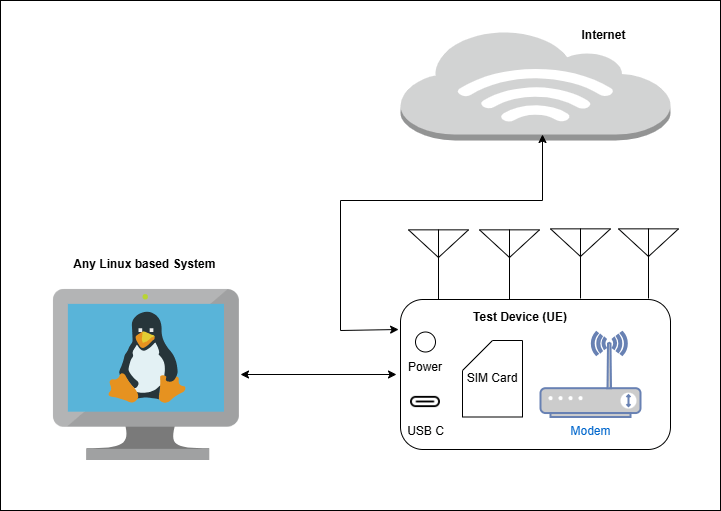
Before jumping onto the steps to establish 5G data connection, we must ensure that:
- The USB connecting modem to the Linux system is identified or not?
- The modem is detected or not?
- The device having the sim card and the modem is attached to the network or not?
The answer of part 1 and 2 lies in the output of dmesg command:
dj@raspberrypi:~ $ sudo dmesg|grep usb
…
[ 21.638938] usb 1-1.3: new high-speed USB device number 6 using dwc_otg
[ 21.779398] usb 1-1.3: New USB device found, idVendor=1e2d, idProduct=00f3, bcdDevice= 5.04
[ 21.779449] usb 1-1.3: New USB device strings: Mfr=1, Product=2, SerialNumber=3
[ 21.779466] usb 1-1.3: Product: Cinterion PID 0x00F3 USB Mobile Broadband
[ 21.779479] usb 1-1.3: Manufacturer: Cinterion
[ 21.779491] usb 1-1.3: SerialNumber: XXXXX
[ 22.017338] usbcore: registered new interface driver cdc_wdm
[ 22.019909] usbcore: registered new interface driver usbserial_generic
[ 22.020003] usbserial: USB Serial support registered for generic
[ 22.112186] usbcore: registered new interface driver option
[ 22.112316] usbserial: USB Serial support registered for GSM modem (1-port)
[ 22.115202] qmi_wwan 1-1.3:1.0 wwan0: register ‘qmi_wwan’ at usb-3f980000.usb-1.3, WWAN/QMI device, aa:bb:cc:dd:ee:ff
[ 22.119163] usbcore: registered new interface driver qmi_wwan
[ 22.138028] usb 1-1.3: GSM modem (1-port) converter now attached to ttyUSB0
[ 22.146823] usb 1-1.3: GSM modem (1-port) converter now attached to ttyUSB1
[ 22.148703] usb 1-1.3: GSM modem (1-port) converter now attached to ttyUSB2
You can also check the output of lsusb to confirm if qmi_wwan related information is returned or not.
dj@raspberrypi:~ $ lsusb -t
/: Bus 01.Port 1: Dev 1, Class=root_hub, Driver=dwc_otg/1p, 480M
|__ Port 1: Dev 2, If 0, Class=Hub, Driver=hub/4p, 480M
|__ Port 1: Dev 3, If 0, Class=Hub, Driver=hub/3p, 480M
|__ Port 2: Dev 4, If 1, Class=Human Interface Device, Driver=usbhid, 12M
|__ Port 2: Dev 4, If 2, Class=Human Interface Device, Driver=usbhid, 12M
|__ Port 2: Dev 4, If 0, Class=Human Interface Device, Driver=usbhid, 12M
|__ Port 1: Dev 5, If 0, Class=Vendor Specific Class, Driver=lan78xx, 480M
|__ Port 3: Dev 7, If 0, Class=Vendor Specific Class, Driver=qmi_wwan, 480M
|__ Port 3: Dev 7, If 1, Class=Vendor Specific Class, Driver=option, 480M
|__ Port 3: Dev 7, If 2, Class=Vendor Specific Class, Driver=option, 480M
|__ Port 3: Dev 7, If 3, Class=Vendor Specific Class, Driver=option, 480M
The answer of part 3 can be checked through AT commands. I generally use socat tool mentioned above to issue AT commands. ‘at+cops?’ is the AT command that can tell you on which network the device is attached to and to which RAT (4G/5G NonStandAlone (Dual Connectivity)/5G StandAlone) configuration.
dj@raspberrypi:~ $ sudo socat – /dev/ttyUSB1,crnl,raw,echo=0
at+cops? # AT Command for operator selection
at+cops?
+cops: 0,0,”3″,13
OK
at+cgatt? # AT Command to check if it is attached to the network or not
at+cgatt?
+CGATT: 1
OK
In the above output of “at+cops?”, the device is connected to “3” network and 13 specifies that it is using 5G NSA (Dual Connectivity) and the output of “at+cgatt?” suggests that it is attached to the network.
Detailed steps to establish 5G/4G cellular data connection and trying basic data transfer are mentioned below:
- Reset the dms operating mode to clean up any ongoing sessions. This will ensure a cleaner approach to starting a new session.
dj@raspberrypi:~ $ sudo qmicli -d /dev/cdc-wdm0 –dms-set-operating-mode=reset
[/dev/cdc-wdm0] Operating mode set successfully
dj@raspberrypi:~ $ sudo qmicli -d /dev/cdc-wdm0 –dms-get-operating-mode
[/dev/cdc-wdm0] Operating mode retrieved:
Mode: ‘online’
HW restricted: ‘no’
- Check value of raw_ip mode
dj@raspberrypi:~ $ sudo cat /sys/class/net/wwan0/qmi/raw_ip
N
- If the value of raw_ip mode is ‘N’ the next task is to change it to ‘Y’. But before changing it to ‘Y’ put down the wwan interface and after setting it to ‘Y’, restart the wwan Interface.
dj@raspberrypi:~ $ sudo ip link set dev wwan0 down
dj@raspberrypi:~ $ echo ‘Y’|sudo tee /sys/class/net/wwan0/qmi/raw_ip
Y
dj@raspberrypi:~ $ sudo ip link set dev wwan0 up
Note: With regards to enabling Raw IP mode, note that, at the startup, wwan interfaces are usually enabled but in a disconnected state and before you can alter the /sys/class/net/wwan0/qmi/raw_ip setting, which needs updation at each bootup as it isn’t persistent, all of the modem wwan interfaces need to be brought down.
- Check IP Configuration of WWAN
dj@raspberrypi:~ $ ip a show wwan0
10: wwan0: <POINTOPOINT,MULTICAST,NOARP,UP,LOWER_UP> mtu 1500 qdisc pfifo_fast state UNKNOWN group default qlen 1000
link/none
- Start the network to launch a broadband/data connection using libqmi-glib and qmicli. There are 2 important parameters here: ip-type – which can be 4 or 6 depending on IPV4 or IPV6 and apn is the access point name of the operator.
dj@raspberrypi:~ $ sudo qmicli –device=/dev/cdc-wdm0 –wds-start-network=”ip-type=4,apn=bredband.tre.se” –client-no-release-cid
[/dev/cdc-wdm0] Network started
Packet data handle: ‘3800550128’
[/dev/cdc-wdm0] Client ID not released:
Service: ‘wds’
CID: ’17’
- Check the current settings of the Wireless Data Service, which will show the WWAN IP Address in the output.
dj@raspberrypi:~ $ sudo qmicli –device=/dev/cdc-wdm0 –wds-get-current-settings
[/dev/cdc-wdm0] Current settings retrieved:
IP Family: IPv4
IPv4 address: 2.70.93.28
IPv4 subnet mask: 255.255.255.248
IPv4 gateway address: 2.70.93.29
IPv4 primary DNS: 80.251.201.178
IPv4 secondary DNS: 80.251.201.177
MTU: 1460
Domains: none
- You can also check the packet service status. The Connection status should be ‘connected’.
dj@raspberrypi:~ $ sudo qmicli –device=/dev/cdc-wdm0 –wds-get-packet-service-status
[/dev/cdc-wdm0] Connection status: ‘connected’
- Start the udhcpc (DHCP client for wwan interface) to request an IP Address. Acquire an IP number from your provider. This should also mention the same IP address as received in step 6, with a specified lease time.
dj@raspberrypi:~ $ sudo udhcpc -i wwan0
udhcpc: started, v1.30.1
udhcpc: sending discover
udhcpc: sending select for 2.70.93.28
udhcpc: lease of 2.70.93.28 obtained, lease time 7200
- Now the wwan interface should have received an IP Address and the data connection should be up and running. Check IP Configuration of WWAN.
dj@raspberrypi:~ $ ip a show wwan0
10: wwan0: <POINTOPOINT,MULTICAST,NOARP,UP,LOWER_UP> mtu 1500 qdisc pfifo_fast state UNKNOWN group default qlen 1000
link/none
inet 2.70.93.28/29 scope global wwan0
valid_lft forever preferred_lft forever
- Ping google.com to test the data connection.
dj@raspberrypi:~ $ ping http://www.google.com
PING http://www.google.com (142.250.74.132) 56(84) bytes of data.
64 bytes from arn11s11-in-f4.1e100.net (142.250.74.132): icmp_seq=1 ttl=58 time=113 ms
64 bytes from arn11s11-in-f4.1e100.net (142.250.74.132): icmp_seq=2 ttl=58 time=45.3 ms
64 bytes from arn11s11-in-f4.1e100.net (142.250.74.132): icmp_seq=3 ttl=58 time=117 ms
64 bytes from arn11s11-in-f4.1e100.net (142.250.74.132): icmp_seq=4 ttl=58 time=84.8 ms
64 bytes from arn11s11-in-f4.1e100.net (142.250.74.132): icmp_seq=8 ttl=58 time=85.4 ms
^C
- Just to verify again, try pinging google domain name server (8.8.8.8) via WWAN Interface.
dj@raspberrypi:~ $ ping -I wwan0 8.8.8.8
PING 8.8.8.8 (8.8.8.8) from 2.70.93.28 wwan0: 56(84) bytes of data.
64 bytes from 8.8.8.8: icmp_seq=1 ttl=60 time=74.5 ms
64 bytes from 8.8.8.8: icmp_seq=2 ttl=60 time=91.7 ms
64 bytes from 8.8.8.8: icmp_seq=3 ttl=60 time=52.3 ms
64 bytes from 8.8.8.8: icmp_seq=7 ttl=60 time=48.6 ms
64 bytes from 8.8.8.8: icmp_seq=8 ttl=60 time=88.9 ms
^C
- Check wwan0 interface related statistics
dj@raspberrypi:~ $ ifconfig wwan0
wwan0: flags=4305<UP,POINTOPOINT,RUNNING,NOARP,MULTICAST> mtu 1500
inet 2.70.93.28 netmask 255.255.255.248 destination 2.70.93.28
unspec 00-00-00-00-00-00-00-00-00-00-00-00-00-00-00-00 txqueuelen 1000 (UNSPEC)
RX packets 59 bytes 4389 (4.2 KiB)
RX errors 19 dropped 0 overruns 0 frame 0
TX packets 49 bytes 3584 (3.5 KiB)
TX errors 41 dropped 0 overruns 0 carrier 0 collisions 0
- Once you are done with basic testing of data connection, yoo can stop the network by mentioning ‘Packet Data handle’ and ‘CID’ received in Step 5.
dj@raspberrypi:~ $ sudo qmicli -d /dev/cdc-wdm0 –wds-stop-network=3800550128 –client-cid=17
Network cancelled… releasing resources
[/dev/cdc-wdm0] Network stopped
These were the basic steps required to start a cellular data connection with a 4G/5G based modem with the help of qmicli using the qmi_wwan driver. Please refer to the modem’s AT command manual for using other AT commands specific to the modem.
Other references:


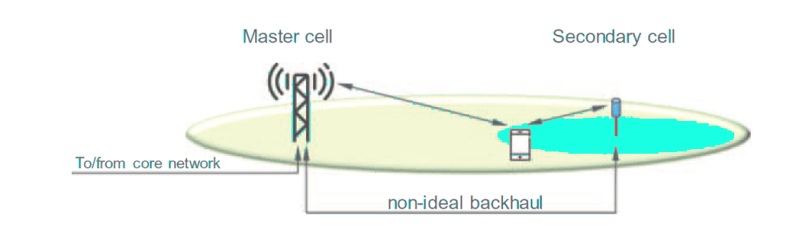
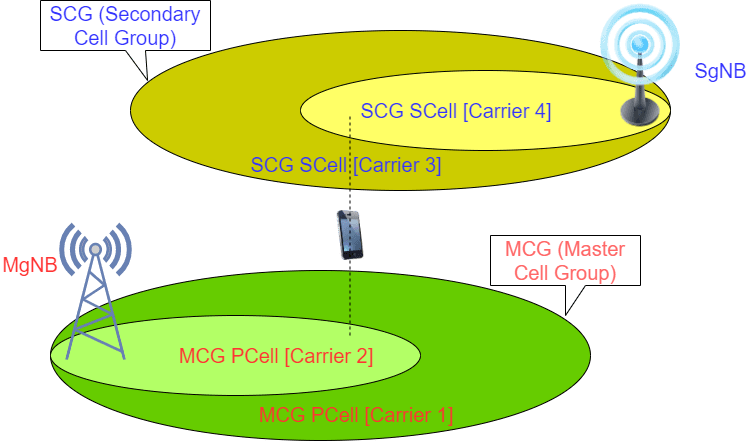
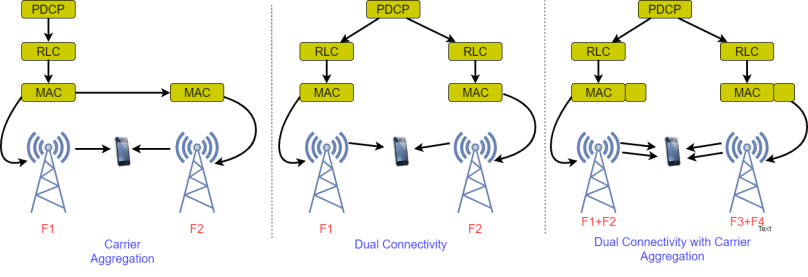
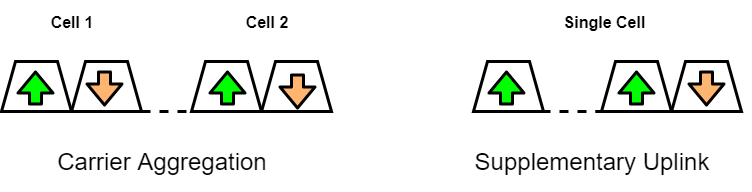





 5G NR - 4G LTE related technology insights
wonderful explanation.